
安装 MDM 扩展后,在浏览器中点击下载链接即可将下载任务交给 MDM。MDM 会获取下载地址、来源页面(referrer)、您在该网站的 cookie 和浏览器的 User-Agent,因此需要登录才能下载的任务也能正常工作。它还会获取浏览器自身下载已达到的地址:当网站拒绝 MDM 直接获取链接时(浏览器已使用过的一次性链接,或只允许浏览器请求其链接的网站),MDM 会在此基础上继续一次,如果目标是另一个网站则不带您的 cookie。当网站的机器人检查(例如 Cloudflare)或其拒绝程序(FileHippo 的 412 Precondition Failed)拒绝 MDM 自己的连接时,MDM 会再次尝试以浏览器的方式连接(相同的握手、设置和请求头顺序),并仅使用您浏览器的 User-Agent 和该网站的 cookie,在此连接上进行下载;您的代理、网络适配器和速度限制照常适用。它无法解决挑战:如果网站仍要求回答挑战,它会再次拒绝,MDM 会提示此网站只允许浏览器通过;此时请 Alt+点击链接,将下载任务留给浏览器处理。
此扩展程序适用于 Google Chrome、Microsoft Edge、Brave、Opera 和 Vivaldi,以及 Firefox 140 或更高版本,和 Mac 上的 Safari 17 或更高版本(请参阅 Safari)。
基于这些浏览器构建的其他浏览器也同样适用:Chromium 和 Helium 像 Chrome 一样安装扩展,Brave Origin 像 Brave 一样,Zen 和 LibreWolf 像 Firefox 一样。在 Windows 上,Zen 自身存在一个错误(请参阅浏览器与 MDM 未连接)。
设置
浏览器集成包含两部分:一个与浏览器通信的小型辅助程序,以及扩展程序本身。
- 使用安装程序安装 MDM,并勾选设置浏览器集成(Chrome、Edge、Brave、Firefox)。这会注册辅助程序。(便携版无法执行此操作;请参阅便携模式。)在 Linux 和 macOS 上,MDM 每次启动时都会为当时安装的浏览器自行注册。
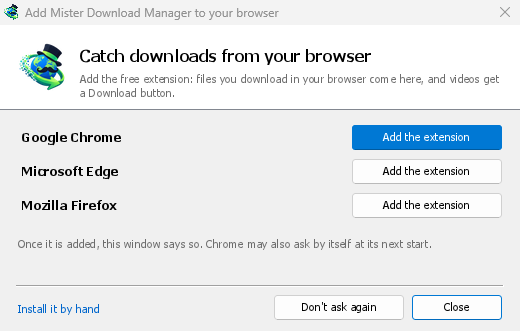
- Add the extension to each browser you use, as below: Firefox from its add-ons store, the others from the Chrome Web Store. Until a browser's extension has reached MDM, MDM's Add Matt Download Manager to your browser window opens at each start: it lists the browsers it found, and Add the extension opens the store's page in that browser. Install it by hand opens the steps for loading it without the store; Don't ask again stops the window.

Firefox
Firefox 140 or later is needed. Install the add-on from its page on addons.mozilla.org, Matt Download Manager: click Add to Firefox. Firefox keeps it updated. Zen and LibreWolf install it from the same page. (MDM's Add Matt Download Manager to your browser window opens that page for you.)
Chrome、Edge、Brave、Opera 和 Vivaldi
Install the extension from its page in the Chrome Web Store, Matt Download Manager: click Add to Chrome. In Edge the button is Get: Edge first asks to Allow extensions from other stores (click Allow), then Add extension. The browser keeps it updated. MDM's Add Matt Download Manager to your browser window opens that page in each browser for you, and Chrome may offer it by itself at its next start once MDM is installed.
如果要手动加载(例如浏览器无法使用商店,或您使用的是自己构建的版本),扩展文件位于 MDM 安装目录下的 extension 文件夹中:如果是为自己安装,则位于 %LOCALAPPDATA%\Programs\Matt Download Manager\extension;如果是为所有人安装,则位于 Program Files\Matt Download Manager\extension。每个版本也提供单独的扩展文件供下载,...-extension-chromium.zip(请先解压)。
- 打开扩展程序页面:
chrome://extensions、edge://extensions或brave://extensions。 - 开启开发者模式。
- 点击加载已解压的扩展,然后选择
extension\chromium文件夹。
Matt Download Manager appears in the list. Leave it turned on. Pin its button to the toolbar to see at a glance whether the browser reaches MDM.
Helium
Helium 从 Chrome 网上应用店的同一页面安装扩展程序:点击添加到 Chrome。Helium 通过其自身服务获取扩展程序,因此这仅在其服务被允许时有效。如果 Helium 提示扩展程序下载已禁用,请打开helium://settings/privacy/services(设置 → 隐私和安全 → Helium 服务),开启允许连接到 Helium 服务和代理扩展程序下载和更新,然后再次点击添加到 Chrome。如果这些选项关闭,请如上所述手动加载扩展程序(chrome://extensions在 Helium 中也适用)。
MDM's setup registers the helper where Helium looks for it, on Windows, Linux and macOS. On Linux and macOS MDM also offers the extension to Helium, through Helium's own services, so with them allowed it arrives by itself at Helium's next start (on macOS Helium asks first: New extension added in its menu, where you turn it on). The Linux packages (.deb, .rpm) leave that to the window below, writing nothing in your home folder. On Windows Helium can't be offered the extension this way: MDM's Add Matt Download Manager to your browser window opens the store's page in Helium when Helium was installed with its setup; Helium from its zip isn't found there, so open the store's page in it yourself. Helium presents itself as Google Chrome, on purpose, so in Options → General → Capture downloads from the following browsers it is Google Chrome.
Safari (macOS)
Mac 应用程序自带 Safari 扩展程序:无需下载。需要 Safari 17 或更高版本以及 macOS 14 或更高版本。
- Drag MDM to Applications and start it once. MDM's Add Matt Download Manager to your browser window lists Safari: How to Add shows the steps below.
- In Safari open Settings → Extensions and tick Matt Download Manager. Click Always Allow on Every Website: the extension needs to read the site to pass your sign-in on.
- 由于此应用程序未经 Apple 公证(实验版本未经公证),Safari 仅在允许未签名扩展程序时才列出此扩展程序:设置 → 高级 → 显示网页开发者功能,然后设置 → 开发者 → 允许未签名扩展程序。Safari 每次退出时都会忘记此设置。
Safari 不允许扩展程序查看或停止浏览器的下载,因此其工作方式与其他浏览器不同:
- 与其他浏览器中的工作方式相同:右键菜单项、视频上方的按钮、此页面上的媒体、工具栏按钮、Alt+点击、MDM 自动启动,以及“选项”中的所有规则。
- A click on a link to a file type MDM takes goes to MDM. A download the page starts by itself (a script, or a link with no file name in its address that the server answers with a file) stays with Safari: use right-click → Download with Matt Download Manager for those.
- 不可用:共享浏览器的代理或 VPN,以及表单下载。
从普通 zip 文件安装
此 -x64.zip 版本没有安装程序,但您可以自行注册辅助程序。在 MDM 文件夹中打开命令提示符并运行:
mattdownloadmanager-nmhost.exe --register
此操作仅适用于您的 Windows 账户。--unregister 可撤销此操作。然后按照上述说明,从 zip 文件的 extension 文件夹中加载扩展。
所需条件
点击下载时,扩展会检查 MDM 的选项:
- 选项 → 常规 → 使用高级浏览器集成必须开启。关闭此选项后,扩展不会向 MDM 发送任何内容。
- 选项 → 常规 → 从以下浏览器捕获下载中必须勾选您使用的浏览器。
- 选项 → 文件类型 → 自动开始下载以下文件类型必须列出文件类型。列表以常用类型开头:ZIP、RAR、7Z、EXE、MSI、ISO、DMG、DEB、RPM、APPIMAGE、MP3、MP4、MKV、WEBM、PDF、GGUF 和 SAFETENSORS 等 AI 模型、GLB 和 STL 等 3D 文件,以及更多。其他任何类型都可以添加到列表中。
- Options → File types → Don't start downloading automatically from the following sites must not list the site. Names are separated by spaces; a name covers its subdomains (
example.comcoverswww.example.com, as*.update.microsoft.comcoversdl.update.microsoft.com;*matches anything, as in*.example.*), and the files the site's pages link to on another server (a CDN), told by the page the download came from (its referrer). Edit list ... below it lists whole addresses to leave alone, one per line (https://example.com/private/*). - 选项 → 文件类型 → 不下载小于以下大小的文件会将小文件(如收据、图标)留给浏览器处理。设置为 0 表示任何大小的文件都可下载。
- A
.torrentfile goes to MDM only while Tasks → Torrent settings → Open magnet links and .torrent files with Matt Download Manager is on. Off, the browser keeps it and opens it in your own torrent program. See Torrents. - 必须允许扩展读取该网站。当您将扩展的访问权限限制为部分网站(或设置为点击时)时,它无法传递您的登录信息,因此会将这些网站上的下载留给浏览器处理。


当浏览器保留某个下载时,扩展程序按钮会显示是哪个下载留下了它,以及文件名。MDM 的日志中会为每个下载生成一行记录(logs\mdm.log 在MDM 的数据文件夹中)。
系统会检查您点击的地址以及重定向后的地址,因此即使被排除的网站将您重定向到另一台服务器,该网站仍会被排除。其他所有下载仍由浏览器处理。选项中的更改会在一分钟内同步到浏览器,无需重启浏览器。
当 MDM 接管下载时,它会同时获取浏览器的文件名、大小和类型,因此 下载文件信息 会立即显示它们,而无需再次询问服务器。来自表单的下载(一个提交并获取文件的按钮)会由 MDM 再次提交,并附带表单数据;发送文件的表单则由浏览器处理。
MDM 接管下载后,浏览器自身的下载会被取消,并从浏览器的下载列表中移除。在 Firefox 及其衍生浏览器(Waterfox、Zen、LibreWolf)中,MDM 会在服务器响应后立即接管下载,甚至在浏览器询问“此文件应该如何处理?”之前:对于 MDM 接管的文件,这个问题永远不会出现(Waterfox 会对每种新类型的文件询问)。MDM 未接管的文件仍会像以前一样出现此问题。下载文件信息会在 MDM 中打开(除非您在选项 → 下载中将其关闭)。在此处取消下载不会将下载任务交还给浏览器。
在浏览器中点击下载链接:MDM 中会打开“下载文件信息”窗口。 

开始下载:进度窗口显示文件正在下载。 

下载完成:打开文件,或打开文件夹。 

在隐私窗口中下载的文件会使用该窗口的 Cookie,不会使用普通窗口的 Cookie;关闭隐私窗口后,这些下载不会保留在 MDM 的列表中。
MDM 从浏览器下载的文件会被标记为来自互联网,就像浏览器自己下载的文件一样:Windows 会在程序运行前用 SmartScreen 检查它,Office 会在“受保护的视图”中打开文档。与浏览器一样,当 Windows 的组策略“不保留文件附件中的区域信息”开启时,MDM 不会添加此标记;选项 → 保存到 可以单独为 MDM 关闭此功能。
浏览器会打开的文件
A PDF, a song or a video that the browser would show or play itself goes to MDM too, when its type is in Options → File types (not on the excluded sites). That's one you open from a link or the address bar, and one a page shows in a frame, as many course and document sites show their PDFs. To turn this off, untick Also take files the browser would open in Options → General → Keys.... This needs a Chromium browser (Chrome, Edge, Brave, Opera, Vivaldi) version 128 or later, or Firefox.
A page with a PDF viewer of its own (its own page numbers, zoom and buttons, while the address bar keeps the page's address) reads the file itself and draws it. MDM leaves that file to the page: if MDM took it, the page would get nothing and say the document failed to load. To download such a file, open its address in a tab of its own, or use the page's own download button if it has one.
工具栏按钮
扩展程序的按钮会显示浏览器是否能连接到 MDM。红色的 ! 表示无法连接;点击按钮可查看原因,“如何修复”会打开“浏览器和 MDM 未连接”中对应的部分。按钮还可以:
- 从此浏览器接管下载:取消勾选可暂停接管,之后的下载都会由浏览器处理,直到您再次勾选。
- Never take downloads from the current site: adds it to MDM's excluded sites. The popup then says Downloads from the site stay with the browser, with Undo to take it off the list again; it says the same whenever you open it on that site.
- Open Matt Download Manager and Options....
- 此页面上的媒体:页面已加载且MDM可以下载的内容(见下文)。
VPN 或代理扩展
VPN 或代理扩展仅是浏览器的代理。在扩展的工具栏弹出窗口中打开“通过此浏览器的代理或 VPN 扩展发送下载”(默认安装时为关闭),MDM 就会通过相同的代理下载它从浏览器接管的任务(默认情况下,选项 → 代理/SOCKS → 使用浏览器请求中的代理/SOCKS已开启;详见选项)。如果关闭此选项,扩展将不会读取浏览器的任何代理信息。
- Firefox会在您切换时询问一次,以允许扩展读取浏览器的代理;关闭此选项会收回该权限。MDM 会获取浏览器自身请求文件时所用的代理,包括 VPN 扩展为每个请求选择的代理。
- Chrome、Edge、Brave、Opera 和 Vivaldi无法在切换时请求该权限,因此扩展在安装时就已获得(Chrome 将其计入扩展已请求的对每个站点的访问权限中,因此不会在安装提示中添加新行,更新时也不会请求新内容)。此切换不请求任何权限。MDM 会获取浏览器有效的代理,无论是由谁设置的(VPN 或代理扩展、策略、命令行):对于下载方案(
http、https、socks4、socks5),它是一个固定的服务器,除非地址在其绕过列表中,或者其代理自动配置脚本(通过其地址或内联)。如果没有代理,或者使用系统代理,则不会发送任何内容,MDM 将遵循其自己的选项。QUIC 代理无法共享。
在这两种情况下,代理的登录信息都不会被读取:需要 VPN 扩展自身登录信息的代理无法共享,下载会因此显示错误,而不是在没有登录信息的情况下继续。
此页面上的媒体
有些页面播放的视频没有链接,有些播放器也会隐藏视频,不让下载按钮检测到。工具栏按钮会列出页面已加载的内容,因此您仍然可以保存这些内容:
- 流媒体:HLS (
.m3u8) 和 DASH (.mpd),这是大多数网站播放长视频的方式。无论播放器切换过多少种画质,每个流媒体只列出一次,并显示其画质 (1080p · 720p),以及扩展程序能够读取的时长。如果流媒体地址不以.m3u8或.mpd结尾,且以纯文本形式提供,也能检测到:打开列表(或在播放器上方点击下载按钮)时,如果播放器正在播放流媒体,扩展程序会读取播放器获取的前几千字节来识别流媒体。在您请求之前,不会读取任何内容。 - 页面播放的视频和音频文件(MP4、WebM、MP3 等),显示文件大小;如果是视频,还会显示画面尺寸。
Start the video first: the list fills as the page loads things, and it's emptied when the tab goes
to another page. Each file is listed under the name it will be saved with. A file the site sends
through a program's address (stream.php, remote_control.php, videoplayback, a bare number)
has no name of its own: it's named after the page (The page.mp4; a title's site name at its end,
as in The page | Example, is left out), or after the file= name in
its address when there is one, with the type its server says it is (MP4, not PHP). With Prefix
media file names with the page title on, a file with a name of its own is named after the page,
then that name (The page - clip.mp4). Click Download beside one: a stream opens MDM's Download video from a page
window, which reads its qualities (yt-dlp does the work); a file goes to MDM's list like any other
download. Your cookies for its server, the page as the referrer and your browser's User-Agent go
with it, as they do for a link you click.
流媒体的分块(片段)不会列出。受版权保护的流媒体(DRM:Widevine、PlayReady、FairPlay;大多数付费流媒体服务都使用这些技术)会标记为受保护,且不提供下载按钮:任何工具都不能绕过这种保护,MDM 也不会尝试。
无需您进行其他操作:扩展程序为了接管下载,已经能查看浏览器下载的内容。它记录的信息只保存在浏览器内存中,关闭浏览器后就会清除。
Right-click: Download with Matt Download Manager
Right-click a link, a video, a sound or a picture and choose Download with Matt Download Manager. MDM downloads it whatever its type: you asked for it, so the file types list and the excluded sites don't apply here (they only decide which downloads MDM takes over by itself). A video that plays as a stream goes to the Download video window with the stream its player loaded (HLS or DASH), as the button over videos sends it, with your cookies for the stream's server and what the browser sent with the stream (its referrer and origin, else the page as the referrer).
Select part of a page and right-click it for Download selected links with Matt Download Manager, or right-click the page for Download all links with Matt Download Manager: the links open in Link grabber, sorted into packages, where you tick the ones you want. A page with tens of thousands of links works too: the extension sends a long list in parts, and Link grabber shows it once they are all in.
选择其中一项时,如果无法连接到 MDM,帮助页面会打开到解释原因的对应部分。
视频上方的下载按钮

当您将鼠标指向网页上的视频时,其顶部角落会出现一个小标签:MDM 的标志和绿色的下载视频部分,一个用于显示列表的箭头,以及一个✕用于在此视频上隐藏它。它会跟随 Windows 的浅色或深色模式。当它出现时,MDM 会查找视频(当 MDM 运行时),然后按钮会显示其找到的最佳画质(1080p、4K)。点击它,该画质会立即下载,只显示其进度窗口;MDM 的主窗口保持不变(如果“选项”中开启了不开始下载,只将文件添加到队列,则会进入队列)。在 MDM 仍在查找时点击也有效:一旦画质确定,它就会下载最佳画质。播放纯文件(非流媒体)的视频无需查找:按钮会显示其画面尺寸并下载文件本身。当无法查找时(MDM 未运行,未安装 yt-dlp,页面是播放列表,或者您将下载发送到另一个 MDM),点击会打开从页面下载视频窗口,其中说明了原因并提供了解决方案。
It takes the video you clicked: its own file when it plays one, or the stream the player loaded (HLS or DASH), else the page. In a feed it takes the post the video sits in. When MDM finds nothing there (a feed that names no post, a post or a site yt-dlp can't read, such as Douyin's recommended videos), the button offers what the tab played for that video instead: the file or the stream whose length is the video's, never the next video the feed loaded meanwhile. When more than one could be it, it says Can't tell which video this is rather than guess; the toolbar button's Media on this page lists what the page loaded. Embedded players work too, and your sign-in for the site, the page that embeds the player and your browser's User-Agent go with it, so videos for members, or that play only on the site that embeds them, can be downloaded. A stream goes with what the browser sent when the player asked for it, its referrer, its origin and its cookies (a player embedded from another site may have cookies the browser keeps for that page only), and MDM sends them again with each of its playlists and pieces: a site's video server that serves its own pages' players only lets MDM through as well. A video the site names (YouTube, Vimeo and the others yt-dlp reads) keeps its own title; a stream known by no title of its own (its address is only playlist.m3u8) is named after the page you're on, without the site's name at its end: on a page titled A film | Example, it's A film.mp4, even when the player is embedded from another site. Sound players get the button too.
点击后,它会用自己的颜色显示发生的情况:
- 已添加到 MDM(绿色),并显示画质:显示会弹出 MDM 窗口并选中该下载任务。
- 打开帖子以下载(琥珀色):视频位于信息流中,无法从此处下载。打开帖子会在新标签页中打开帖子(如果按钮知道的话);请在那里使用该按钮。
- MDM 未响应(红色):MDM 未安装或未启动。获取 MDM会打开其下载页面;重试会再次尝试。
- 此站点已关闭(灰色):在网站上选择从不在此站点显示后,或者当“选项”中将其关闭时。开启会再次在该站点上显示它。
- 受保护视频 · 无法保存(灰色,带锁):受版权保护的视频 (DRM),任何工具都无法保存。
它不会碍事:它只在您将指针移到视频上方时显示(或者播放器具有键盘焦点时;然后Tab键会移动到按钮),指针停止后 1.5 秒以及指针离开视频后立即淡出,并会忽略小视频和短的静音循环(动画图片、背景)。播放或暂停视频不会使其再次出现。在宽度小于 360 像素的视频上,或者文字无法容纳的地方,它只显示其标志、箭头和✕。在全屏模式下,如果播放器允许,它会跟随视频。
- 其菜单(旁边的箭头,或当按钮具有键盘焦点时为↓):视频的标题、时长和网站;首先是下载最佳,然后是视频和音频下的每种画质的一行,包含文件类型、帧率或比特率和大小,最佳画质会标记出来;所有画质和字幕...,它会打开从页面下载视频窗口;然后是仅在此视频上隐藏(Esc),从不在此站点显示(MDM 会记住该站点),以及按钮设置...,它会打开 MDM 的“选项”。箭头键用于移动,Enter用于选择,Esc用于关闭。
- 移动它:沿着视频边缘拖动其圆点;拖动时,会显示边缘及其吸附点(角落和中间)。它会一直停留在该站点上。
- 关闭它,或查看它不显示的网站:选项 → 常规 → 自定义浏览器中的 MDM 下载面板 → 编辑...。


该按钮遵循其余的集成:当使用高级浏览器集成关闭或浏览器未勾选时,它不会显示。
强制或阻止捕获的按键
Hold Alt (Option on a Mac) while clicking a link to let the browser download it instead of MDM. Chromium browsers and Safari download such a link themselves. Firefox does nothing with that click, so the extension follows the link for it, as a plain click would, and the browser keeps what comes of it. When the link redirects, or the page it leads to starts the download by script ("your download starts in 5 seconds"), that download stays with the browser too when it starts within ten seconds. Options → General → Keys... says so, and holds Also take files the browser would open.
要永久将某个网站的下载保留在浏览器中,请使用工具栏按钮的 从不接管来自,或将该网站添加到 不自动从以下网站开始下载。要将某种文件类型保留在浏览器中,请将其从文件类型列表中删除。
MDM 未运行时
您无需先启动 MDM。当浏览器移交下载而 MDM 未运行时,助手会启动它并传递下载。
如果完全无法连接到 MDM(它已被卸载,或助手未注册),下载将由浏览器处理,因此不会丢失任何内容,并且工具栏按钮会显示红色的 !。请参阅 浏览器和 MDM 未连接,或运行 选项 → 常规 → 测试浏览器集成...。


下一步
免费、开源、无广告、无试用版。
下载 Matt Download Manager